Your support helps keep this blog running! Secure payments via Paypal and Stripe.
Playing drums in Clone Hero brings a whole new level of excitement—but first, you need to set it up correctly. Whether you’re using a table‐style e‑drum or a full acoustic-style kit, this guide walks you through both setups step by step.
Table e-Drum with 7 Pads
There are so many drum kits on the market with various prices, but I decided to buy a Medeli DD315 table e-drum with 7 pads. The main reason I chose it is its space-saving design—I can easily set it up on a chair or TV table. It’s also lightweight, portable, and easy to use, with adjustable volume.
The sound is good when I use headphones, though I’m not a fan of the built-in speaker. What I like most is the layout of the pads, which is similar to a real drum kit. Crucially for playing Clone Hero, it has both MIDI output (via USB or MIDI PIN interface) and adjustable MIDI notes. This drum kit really has everything I need!


Medeli DD315 issue
I’ve been learning to drum for a few weeks now and quickly discovered that the included foot switch was causing double hits on a single press. For instance, when playing a fast song, I’d only kick the pedal once, but the drum would register two hits. This was because the foot switch was too sensitive. So, I bought an upgraded foot pedal (as seen in the image), and I haven’t had any issues since.
What is a Clone Hero?
If you’re a gamer like me, you’ve probably played rhythm games like Guitar Hero, Rock Band, or Rocksmith. With Rocksmith, you can use a real guitar to play the game—I own one, by the way, and it’s really fun to play. For Guitar Hero and Rock Band, however, you can only use real drums with certain versions of these games. As far as I know, you cannot use a real guitar or bass guitar in Guitar Hero or Rock Band.
By now, you’ve probably guessed what Clone Hero is. Yes, it’s a fan-made game inspired by Guitar Hero and Rock Band. Clone Hero is a free PC game.
Here’s what it looks like when you play Clone Hero with your drum kit.
What We Need To Set Up Our Drum Kit For Clone Hero
E‑Drum kit (MIDI-enabled)
Obviously, you’ll need an e-drum kit that has both MIDI output and a MIDI note adjustable function. The MIDI note adjustability is crucial because it allows you to map the notes from your drum kit to the Clone Hero controller.
MIDI USB cable or MIDI PIN cable
Basically, the MIDI USB cable is the same as a printer USB cable; you might even have one at home already. If not, you can find an inexpensive one on Amazon. We’ll use this to connect your e-drum kit to your computer.
For the MIDI PIN cable, you’ll need a USB converter to connect it to your computer. Here’s an example of a MIDI converter.
Clone Hero
First, you’ll need to install the Clone Hero application on your computer. (I installed it on a secondary computer, one I don’t use for work, to avoid any potential corruption or issues with my main machine.) For playing with a real drum kit, we’ll use the public test builds version. I don’t believe the older version downloadable directly from the Clone Hero website (the 2019 version) works with real drums. Currently, to get the version that supports real drums, you’ll need to download the installer from Discord. Read on for more details.
Install Clone Hero
- Go to the Clone Hero website
- Click on the “Join Our Discord!” button, then follow the instructions on the screen. Basically, you will need to register your account and join the Discord community. For me, I need to verify the new registration with my phone number.
- Once you get into the CloneHero Discord community, you will look for “ptb-opt-in” under the “PUBLIC TEST BUILDS (PTB)” channel on the left side.
- Then you need to read the message and verify following the message. Once you verify, you will see more channels appear under the “PUBLIC TEST BUILDS (PTB)” channel.
- The new channel you are looking for is “ptb-info-and-dl“. Click on it, and you will see the download link for the Clone Hero installer and instructions. Just follow the instructions. See the screenshot below.

Config Clone Hero
After successful installation, we will do some configure which are updated to the last public test builds version, and set the path of the songs directory.
- After launching Clone Hero on your computer, click on the Settings icon menu.
- At Launcher Settings, enable “Public Test Builds” and then go to the “Updates” icon menu.
- At Game Manager, click on the “VERIFY FILE INTEGRITY” button to get the last public test builds version. Wait until the update is done.
- Lastly, go to the “Config” icon menu. Then click on the “DIRECTORIES“. You will find the “SONG PATHS” section there. Click on a plus icon and then click on the file icon next to the trash icon in order to browse where you want to save the downloaded songs for playing the game. I created a new songs folder inside the Clone Hero Launcher folder where Clone Hero was installed on my computer. You can store the downloaded songs anywhere you want.
- Now the Clone Hero is all set. Go ahead, and click on the Play icon to open the Clone Hero game. See the screenshot below.

Keyboard controller configuration
- At the Clone Hero game screen, you will notice you can not press anything on the keyboard and make it activate. Because you need to press space for controls first. See the “Press Space For Controls” message at the bottom of the screen.
- Once you press the space bar, you will see the controller remap as screenshot below.

- At the controller remap, you will see you don’t have any controller assigned yet. We will do it later. But now you see the default keyboard mapping here. It uses the letter A for the green color which is the confirm button in the game. Letter S for the cancel or go back in the game. The Enter key is a start button in the game.
- Just remember which keyboard keys will be used in the game. Now click on the Done button to close the controller remap screen.
Hook E-drum kit to Clone Hero
- Next, hook your e-drum kit with the MIDI USB cable to your computer. If your drum kit is the MIDI PIN, you will need the converter to the USB port on your computer.


Assign your e-drum kit to the Clone Hero controller via Profile
How to navigate, confirm, and cancel the menus by keyboard
- Use the letter A key to select the menu
- Use the letter S key to go back or cancel the menu
- Use the arrow key up and key down to select the options for each menu.
This keyboard set can be found by pressing the space bar.
Create your own profile
- In the Clone Hero game, hit the Enter key to pop up the Profile menu. In the Profile menu, you will see the Guest as the default profile there.
- Click on <Create Profile> to create yours.
Select Drum type for your profile
- Once your profile is created, at your profile, you want to select the Controller as <Drums> type. I don’t use <5 Lane Drums> but I leave the link on how to set up any MIDI drum kit for playing <5 Lane Drums> here.
Select Input Device
- After selecting <Drums>, you will go to MIDI Settings.
- Note that, you will see the hi-hat icon when you select Drums type which shows as number 1 on the screenshot below.

- At the MIDI Settings, select Input Device. Choose your drum kit. Mine is <e-drum>. In this step, if you don’t see your drum kit in the Input Device list (only <None> available), you need MidiDrumHero to help, go to the “E-drum kit (table e-drum)” section for MidiDrumHero installation and note mapping.

Drum note mapping guide (Mappings menu)
- Then you will do the note mappings at Mappings. There is a drum mapping guide in Discord you can refer to. In the Clone Hero Discord, you will look for the “CLONE HERO DISCUSSION” channel and then the “clone-hero-talk” channel. In this “clone-hero-talk” channel, you want to search for “drumcontrols”. So in your chat box, you will type “!drumcontrols” and then hit enter. You will see the bot message with the manual link. Click on the manual link you will see the guide as shown below.

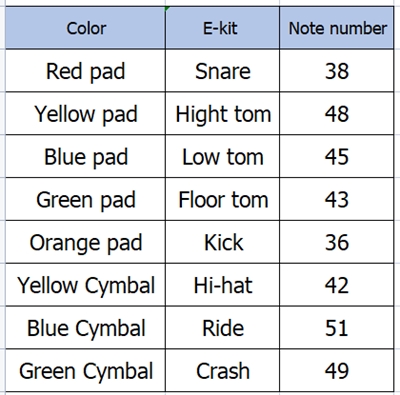
- We will look at the MIDI e-kits guide only. Here is my note mapping as a screenshot below. Your drum kit may have some different MIDI note numbers than mine. You just have to map your note number to the Clone Hero controller color.
| Color | E-kit | Note number |
| Red pad | Snare | 38 |
| Yellow pad | High tom | 48 |
| Blue pad | Low tom | 45 |
| Green pad | Floor tom | 43 |
| Orange pad | Kick | 36 |
| Yellow Cymbal | Hi-hat | 42 |
| Blue Cymbal | Ride | 51 |
| Green Cymbal | Crash | 49 |
Sample of note mapping from e-drum kit (Medeli DD315) to Clone Hero controller
YouTube link on How to set up your drum kit for Clone Hero
This YouTube link guides you to set your e-drum kit on Clone Hero if you prefer to watch the video.

E-drum kit (table e-drum and other e-drum kits that can be detected as the Input Device list)
The issue that I have with my table e-drum is Clone Hero can not detect my drum. When I select <Input Device>, I see only the <None> option. It should see my drum kit name in the <Input Device> list.
Checking why your computer doesn’t detect your drum kit
You will need to check two things. First, does your computer detect your drum kit? On Windows, you will go to Devices and Printers as shown below. If you don’t see your drum kit here, you may need to find and install your drum kit driver for your OS (Windows, Mac, Linux). Secondly, you need to check whether the MIDI USB cable or the MIDI PIN cable is working or not.

Install and Create note mapping in MidiDrumHero
MidiDrumHero is a bridge between e-drum kits and midi keyboards to Clone Hero. Most of the full drum kits that have MIDI output will be fully supported by Clone Hero public test builds version out of the box. No need to install MidiDrumHero. However, my table e-drum is not that case. My Medeli DD315 can not be detected in the Clone Hero Input Device, so it needs MidiDrumHero (which comes with a vJoy driver). If your drum kit isn’t detected in the <Input Device> list, you should try MidiDrumHero.
- Install MidiDrumHero – It is straightforward, just go to the MidiDrumHero GitHub, then download and install the MidiDrumHero (comes with a vJoy driver).
- Create note mapping in MidiDrumHero – After installing MidiDrumHero, we will set the note mapping. Go ahead, and launch the MidiDrumHero.
- On the dashboard, select your drum kit (number 1 and number 2 in the screenshot below)

- Then go to Monitor (number 3). On the Monitor page, hit each pad on your drum kit, you will see the note number and velocities there. Just write it down somewhere. For example, the snare is 38. We will use this number to create the mapping on the Dashboard page. We will use only 8 pads regarding MidiDrumHero usage.

- Back to the Dashboard page, click on the “New Drum Pad” button and add the Midi number you wrote down, set the trigger velocity and button number as you like. The button number must be unique for each midi number and will start from 1 to 8 based on MidiDrumHero usage. See the screenshot below.

Select Input Device after note mapping in MidiDrumHero
Now, your table e-drum or your e-drum kit should be detected in Clone Hero. Make sure your drum kit is tuned on. Then go check the Input Device at your profile in Clone Hero again. If you still don’t see your drum kit in the Input Device list, you should go to Clone Hero Discord for more help.
Once your drum kit is selected, you will go to the Mappings menu. In your Mappings menu, you will see Red pad, Yellow pad, and so on. Select each pad and check the note number again. If the note number doesn’t match your drum kit or you want to change the mapping, you can change it here. See the screenshot below.



And that’s it. Your Clone Hero and drum kit are ready for fun!
How to add songs in Clone Hero for Drum
There are a ton of songs you can download and play in Clone Hero. When playing drums, you’ll need to find songs that support drum charts, such as those from Rock Band and Guitar Hero World Tour.
Where to download songs for Clone Hero
- Here are Clone Hero Songs for downloading to your song path.
- You can also search for specific songs from this chorus site.
Below is how to check which song can be played with the drum. You just need to see the hi-hat icon at the song.

How to update the song list in Clone Hero
Once your downloaded songs are in your songs path, you will need to launch the Clone Hero game and scan the list of the new songs. If you have a lot of new songs list, the scan songs process will take a while. See where to scan songs in the screenshot below.

Useful links that I use as a reference
I leave the useful links I use as references in this post here. Thank you to those people who share useful information. So I did the same to return back to the public.
- “How to get Drums on Clone Hero (Quick Version)” link
- “How to set up your own drum kit on Clone Hero” link
- “Setup Any MIDI Drum Kit as a Guitar Hero World Tour PC Controller” link – This link includes how to set up 5 land drums as well.
- “Playing Clone Hero with real drums on YouTube channel” link – I like to watch this YouTube channel to see which song I like to download. This guy makes me want to play the Clone Hero.
Useful links for a beginner drummer
If you are learning to play drums by yourself and you are a beginner like me, you may be interested in these YouTube channels. I started to learn from zero and now I am able to read the drum notes and play along with the drum scores following these guys. Just sharing.
- DRUMMATE channel
- At The Drum channel
- Drum Machine Studio channel
- SKILL ZOURCE channel – Drum, Electric guitar, Electric bass guitar and keyboard
Wrap up
This is a long post, but I hope the information is helpful and saves you time. If this post helped you, please consider supporting my work by buying me some beer (via card or PayPal). Thanks!
I have found that others are stealing my blog content and images to generate traffic on their own sites. If you encounter any of these websites, please send the links to me. I will submit these links to Google for review. I appreciate your help.
Your support helps keep this blog running! Secure payments via Paypal and Stripe.